Your first envelope
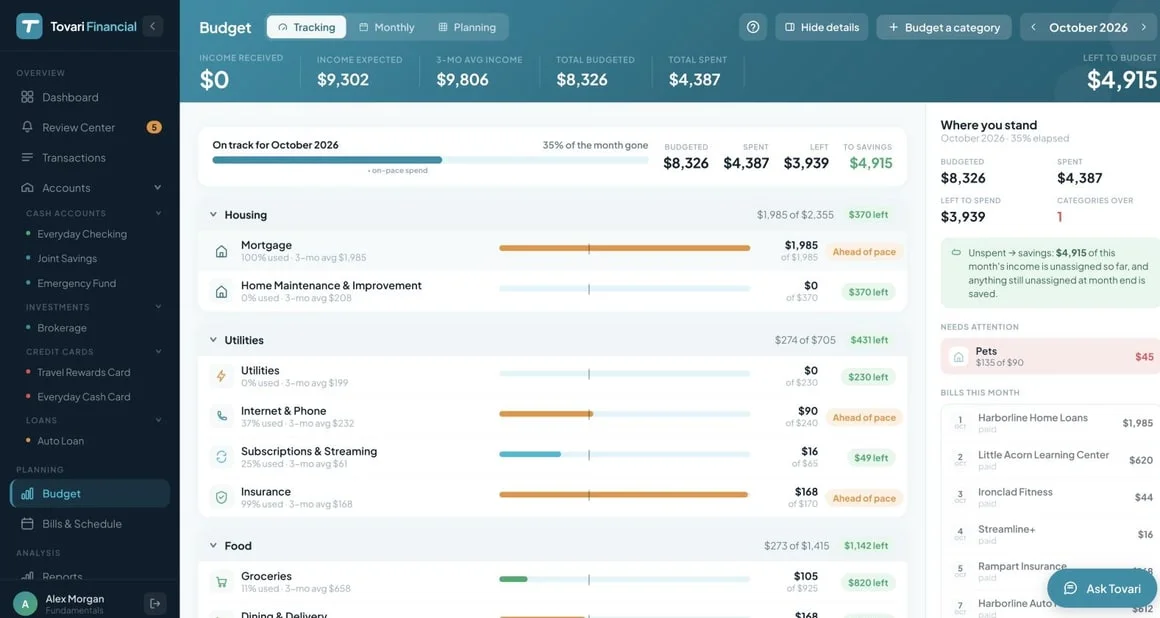
Step 7 of the Quick start. An envelope is a category you have flagged as budgeted. Flagging it gives you a monthly target, a spent figure, a remaining figure, and a balance that carries forward.
What about categories I don’t budget?
Section titled “What about categories I don’t budget?”They are still fully tracked — they appear in your reports and in the All Other Categories bucket on the budget screen. They simply have no target and no carry-forward.
Two rules worth knowing up front
Section titled “Two rules worth knowing up front”Nothing is flagged for you. Tovari never decides a category deserves an envelope. The budget interview during onboarding was your first opportunity, and every envelope after that is one you chose deliberately.
The flag is not per-month. Flagging a category as budgeted persists — it stays an envelope in every following month until you remove it. You are not re-declaring your budget each month; you are adjusting the targets on envelopes that are already there.
Where does carry-forward start?
Section titled “Where does carry-forward start?”In the month you flagged the envelope: its running balance is anchored there, so it never invents history from before it existed. Flagging while viewing an earlier month pulls that anchor back so the earlier month takes part; re-flagging in a later month leaves the earlier anchor alone. Removing an envelope and flagging it again starts a fresh running balance from that point.
The rollover figure itself is computed on the server and shown to you — do not try to reconstruct it by hand from targets and spending.
Flag your first envelope
Section titled “Flag your first envelope”- Open Budget in the left navigation and make sure you are on the month you want.
- Select the All Other Categories row to open its panel. Under What this usually costs it lists the categories you are spending on but not budgeting, with what each one actually cost this month.
- Find the one you want and press Budget this on its row.
The category is promoted out of the bucket and appears in the budget grid as its own line, in that month and every month afterwards.
Give it a target
Section titled “Give it a target”Click the budgeted amount cell on the category’s row and type the figure. The budget screen autosaves — there is no Save button.
Selecting the category’s row opens its detail panel, which shows its target, what has been spent, what remains, what rolled over, and its recent average.
The rules are identical on mobile — the same persistent flag, the same “nothing is flagged for you”, the same server-computed carry-forward. The route to them is a drawer and a sheet instead of a grid and a side panel.
Flag your first envelope
Section titled “Flag your first envelope”- Open the Budget tab in the bottom tab bar.
- Scroll to the Not budgeted drawer at the bottom of the list — its header shows how many categories are in it — and tap to expand.
- Tap the category you want. The Budget name sheet opens.
- Tap Add to budget. The sheet closes only once the change has actually saved, and shows the failure inline if it did not.
The category moves out of the drawer and into the budgeted list.
Give it a target, and see where it stands
Section titled “Give it a target, and see where it stands”Tap a budgeted category to open its sheet. It shows Target, Spent, Remaining, Rolled over, and a 3-mo average, and closes with Done.
To set the amount, use the Auto-fill sheet from the category row — it offers suggestions (such as recent averages) that you can apply to that one category or to its whole section, which is quicker on a phone than typing figures into a grid.
Where you are now
Section titled “Where you are now”You have at least one real envelope with a target, and you know that flagging it was a one-time decision rather than a monthly chore. Next, put your recurring outgoings on the calendar: scheduling a bill.