Add your first account
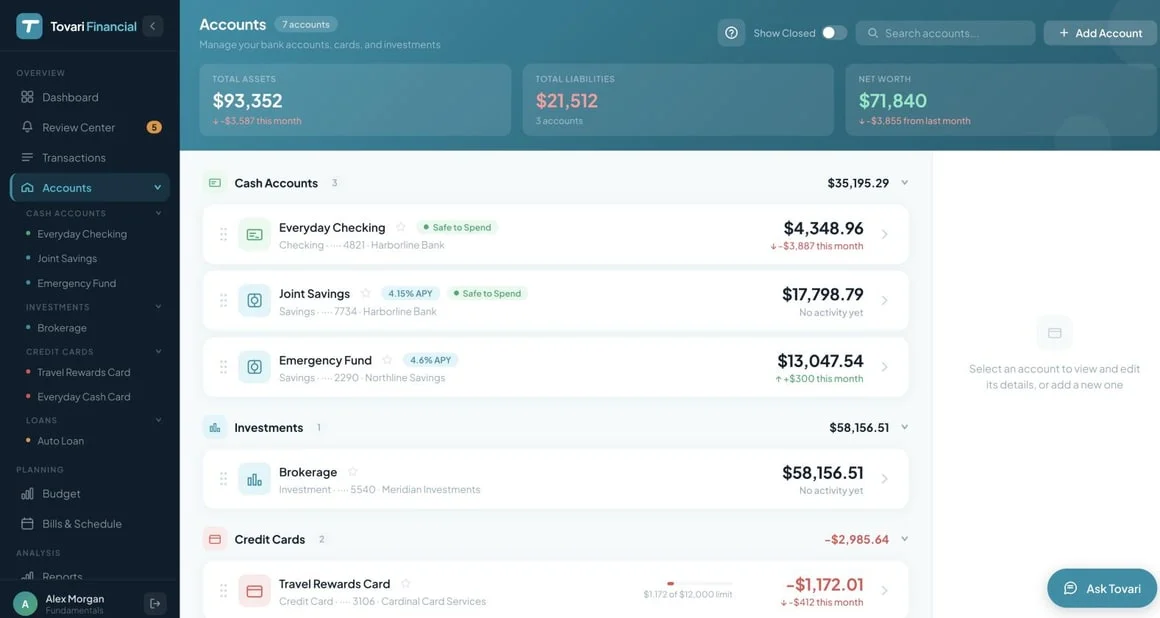
Step 2 of the Quick start. To add an account by hand, give it a name, a type and, if you like, the balance it holds today. Tovari files it in one of four groups by its type.
Onboarding asks for accounts first; the steps are the same there and on the Accounts screen.
What account types can I add?
Section titled “What account types can I add?”Every account you create is one of five types: Checking, Savings, Investment, Credit Card, or Loan. The type decides the account’s group, which fields the editor offers (a rate for deposit accounts and cards, a credit limit for cards), whether the balance is an asset or a liability, and — as Understanding Safe to Spend explains — whether the account can ever count toward your Safe to Spend number.
Investment behaves differently from the rest once you link it to a brokerage: Tovari shows the value the brokerage reports rather than a running balance you reconcile, and opening the account shows its value history instead of a transaction list. See Investment accounts linked to a brokerage.
How does Tovari group accounts?
Section titled “How does Tovari group accounts?”By type, into four groups — never one flat list:
| Group | Holds |
|---|---|
| Cash Accounts | Checking and savings |
| Investments | Investment accounts |
| Credit Cards | Credit cards |
| Loans | Loans |
Every type lands in exactly one group. The two platforms order the groups differently — see the tabs.
Add the account
Section titled “Add the account”- Go to Accounts in the left navigation.
- Press Add Account in the header. A small chooser offers Connect a bank and Add manually.
- Choose Add manually. The Add Account dialog opens.
- Fill in the form:
- Account Name — required. The placeholder suggests something like Everyday Checking.
- Account Type — required. Pick one of the five types.
- Bank (Optional) — the institution’s name, for your own reference.
- Account Number (Optional) — the last few digits only. It need not be unique, but it is searchable and is one of the clues Tovari uses to spot a movement between two of your own accounts, so enter it accurately if you know it.
- Starting Balance (Optional) — the balance the account holds today, before you record
anything in Tovari. On a credit card or loan, enter the amount you owe as a positive
number (a $200,000 mortgage is
200000); Tovari counts it as a debt, so it lowers your net worth. - APY (Optional) on a checking, savings, or credit card account, and Credit Limit (Optional) on a credit card (used to show your utilization).
- Include in Safe to Spend — shown only for checking and savings. A new checking account arrives with it on; savings arrives off.
- Press Add Account.
The account appears immediately under its group heading, and the header tiles — Total Assets, Total Liabilities, Net Worth — update.
Group order and layout
Section titled “Group order and layout”The web Accounts screen lists the groups in this order:
Cash Accounts → Investments → Credit Cards → Loans.
Each group is a collapsible section. You can drag accounts to reorder them only within one section — the account type decides the group, so dragging cannot move an account between groups. A collapsed section is not remembered between sessions.
Editing and closing
Section titled “Editing and closing”Click an account to open its detail panel and change any field. Closing an account uses Close Account in the account editor — it is a soft close: history is preserved and the account is archived out of your list rather than deleted. Close may also offer Delete permanently instead.
Add the account
Section titled “Add the account”- Open the Accounts tab in the bottom tab bar.
- Tap the Add account control in the screen header. (On a first run, the empty state offers Connect a Bank and a manual path directly.) The Add account sheet slides up.
- The top of the sheet is the recommended Connect a bank card. Below the divider marked OR TRACK IT MANUALLY is the manual form.
- Fill it in:
- Account Type — a row of chips; tap one.
- Account Name — placeholder Everyday Checking.
- Bank and Last 4 — side by side, both optional.
- Starting Balance — on a credit card or loan, the amount you owe, entered as a positive number.
- Tap Add Account at the bottom of the sheet.
During onboarding the same sheet is reached from Add an account on the accounts step.
What differs from the web
Section titled “What differs from the web”- Group order. The native Accounts screen orders the groups Cash Accounts → Credit Cards → Loans → Investments, and it hides the Investments group entirely until you have at least one investment account. The web always shows Investments second. Which type lands in which group is identical.
- No Safe to Spend switch when adding. The add sheet sets the flag from the type you pick (checking on, everything else off).
- The editor is a sheet (Edit account), not a side panel, and it carries Bank, Last 4, Credit Limit, APY, and Include in Safe to Spend as the type allows.
Where you are now
Section titled “Where you are now”You have one account with a starting balance and no transactions in it. Repeat this page for every account you track by hand, or let the bank fill one in for you — the next page: connect a bank with Plaid.