Budget
How does the budget work?
Section titled “How does the budget work?”Tovari’s budget is an envelope budget: you pick the handful of categories worth managing actively, give each one a monthly amount, and Tovari tells you what is left in each as you spend.
That is deliberately separate from categorizing. Every transaction you have already carries a category, whether or not you budget it — see Categories. Budgeting is the smaller, deliberate selection you make on top of that.
A transfer between your own accounts that Tovari has detected but you have not yet confirmed in the Review Center still counts against an envelope until you do. When that is affecting the month you are looking at, an amber notice tells you how many possible transfers and how much money are involved, with a link to the Review queue to confirm or dismiss them.
An envelope is something you turn on
Section titled “An envelope is something you turn on”Nothing becomes an envelope by itself. Tovari never decides a category deserves a monthly amount, however much you spend on it. A category is an envelope only because you turned it on, and it stays one until you turn it off.
The choice is not a monthly one. Turning a category into an envelope is a one-time decision: it stays an envelope in every following month, and what you revisit each month is the amount, not the membership. Categories you leave alone are still tracked in full — they are grouped together on the budget screen and still appear in your reports; they simply have no monthly amount and nothing carrying forward.
Only spending categories can be envelopes. Income categories, and the built-in ones Tovari maintains for you, are never offered as candidates and cannot be turned into envelopes.
What carries forward
Section titled “What carries forward”An envelope keeps a running balance. Whatever you did not spend in a month is added to what is available the following month, so an envelope you underspend gets roomier and one you have been saving into builds up.
Three things decide where that running balance starts.
- It accumulates from the month you turned the envelope on. Tovari does not invent a history for a category from before it was an envelope.
- Turning it on while you are looking at an earlier month pulls the start back to that month — and so does setting a monthly amount for an earlier month. For as long as the envelope stays on, the start of the accumulation only ever moves earlier, never later.
- Removing an envelope and adding it back later starts the running balance fresh from the month you added it back. The monthly amount you last set comes back with it automatically, so the envelope reappears with a figure already filled in — but the leftover it had built up before does not come back with it. If you want that history kept, leave the envelope on and set its amount to zero rather than removing it.
Overspending does not follow you around either. If you spend more than an envelope holds, that month shows you over, and the next month starts from the amount you set rather than from a debt.
Every one of these figures — what is available, what has been spent, what is left, what rolled over — is worked out by Tovari and handed to you. They are numbers to read rather than sums to reproduce: the running balance depends on the whole stretch of months the envelope has been on, so adding up a couple of targets and receipts will not reliably reconstruct it.
Savings goals
Section titled “Savings goals”A goal is a yearly amount you want a category to reach, marked so that it appears on your dashboard. It is not a separate thing you create and maintain: it is a mark on that category’s year target, so the goal amount and the target are always the same figure and can never disagree.
Two things follow from that:
- A goal needs a year target first. Until the category has one, the goal control is unavailable rather than quietly inventing an amount for you.
- A goal is a yearly view of one category, not a second monthly plan. A category can carry a goal whether or not it is also an envelope.
Progress is worked out by Tovari and is signed: a goal you have gone past reads as the amount you are over, never as a reassuring zero. Do not try to reproduce it from your register — refunds, adjustments and money moved between your own accounts are all accounted for in that figure for you.
A goal appears on your dashboard during the year it is set for, so one you mark for next year will not show up today. Setting a category’s year target is done in the web app on a PC or Mac — that is the only place a target is created or a goal is marked. A phone browser and the native mobile app show your budget but carry no goal control at all.
Finding the budget
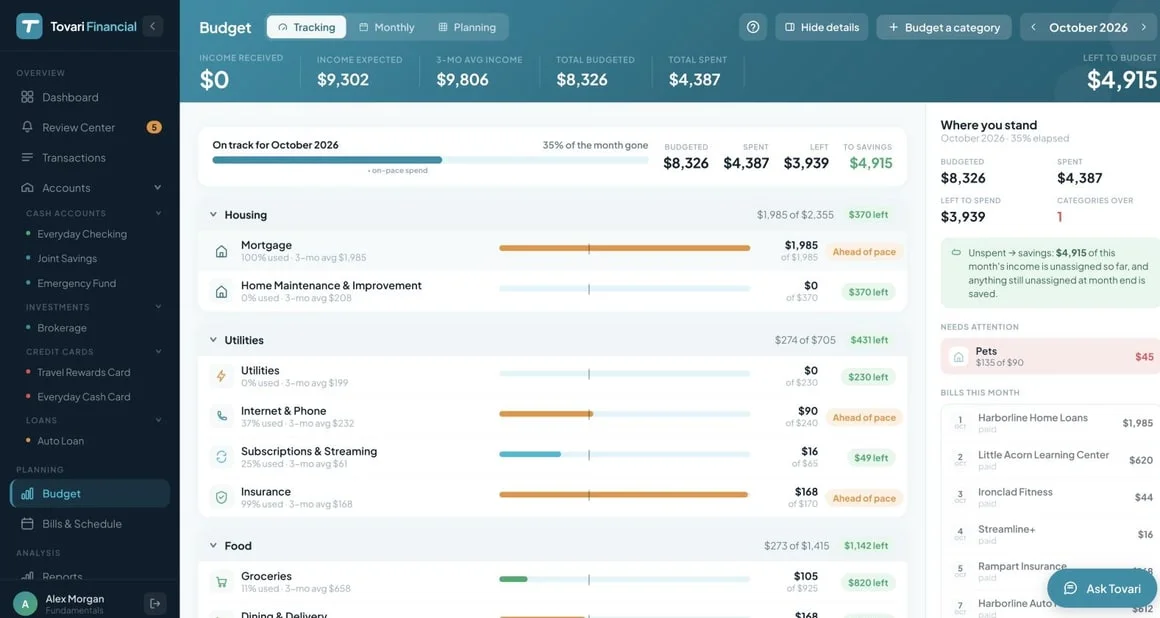
Section titled “Finding the budget”Budget is in the left-hand navigation. The screen keeps a header band of the period’s headline figures pinned at the top while the categories scroll beneath it, and offers three views from the switcher beside the title:
- Tracking — how the month is running.
- Monthly — the grid of envelopes for one month, with an editable amount on each row.
- Planning — a whole year at a time, one column per month, with a year target per category.
Switching views is not a reload: an edit made in one is already there in the other.
Turning a category into an envelope
Section titled “Turning a category into an envelope”Press Budget a category in the header. The picker lists the categories you are already spending on but not budgeting, grouped by section and searchable, each with a Budget this action. The category is promoted into the grid for that month and every month after it.
The All Other Categories row leads to the same categories, alongside what each one actually cost you — useful when you want the spending to choose for you.
Setting amounts
Section titled “Setting amounts”Click a budgeted amount cell and type. The budget screen autosaves; there is no Save button.
Selecting a row opens the details panel beside the grid: the month’s amount, what has been spent, what is left, what rolled over, recent averages, and the same month a year earlier. In Planning the panel also carries the category’s year target and an action that spreads that target across the months still to come.
Under the amount, the panel offers three one-tap shortcuts so you rarely have to type a figure by hand: Scheduled + spent (what the category’s bills still owe this month plus what you have already spent in it), 3-mo avg (its average over the last three months), and Last month (what you budgeted the month before). A shortcut with nothing to offer for that category and month does not appear; one that would set the amount to zero appears but is disabled rather than doing nothing when tapped. These carry over past months too — they are not limited to the current one.
Budgeting a whole month at once
Section titled “Budgeting a whole month at once”Budget every category, next to the month controls in Planning, applies one of those same three figures to every envelope for the month in one step instead of one category at a time. It opens a preview — pick scheduled + already spent, 3-month average, or last month’s budget, choose whether to leave already-budgeted categories alone or overwrite them, and see each category’s current and new amount before anything is saved. Applying is a single action: the preview closes and the toolbar confirms how many categories were budgeted. Undoing it (Cmd/Ctrl+Z) restores every category the way it was. The button is only available once the month reaches the auto-fill window Tovari currently supports — the same window Auto-fill already uses elsewhere on this screen.
Marking a goal
Section titled “Marking a goal”Open a category’s details panel in Planning, set its year target, then tick Track as Goal. The category appears on the dashboard’s savings-goals card for that plan year.
To change a goal’s amount, change that year target — they are the same figure, which is why the dashboard and the budget can never quote you two different goals. To remove a goal, untick Track as Goal; the target itself is left alone, so the category keeps its yearly plan and simply stops appearing on the dashboard.
That checkbox also lives on a category with no monthly envelope: open All Other Categories in Planning and each category listed there carries its own Set a goal control, so you can give one a year target and mark it a goal without budgeting it first. Once it has a target, the same row lets you untick it. You can also remove a goal from its card on the dashboard — a Remove control sits next to its Not budgeted marker there and clears the goal flag the same way, leaving the year target untouched.
Turning an envelope off
Section titled “Turning an envelope off”Open the category’s editor from the budget screen and use its remove from budget action. The category itself is untouched — it keeps its name, its history and its transactions; it simply stops having a monthly amount. Remember that adding it back later restarts the running balance from the month you add it back, while bringing the last amount you set with it.
On a phone browser
Section titled “On a phone browser”A phone browser gives you the mobile app’s Budget screen: the month with arrows to step through months, a Budget | Plan switch, and a band showing Inflows − Budgeted = Savings that shrinks as you scroll.
Budget shows how the month is going:
- A month summary card: planned, spent, left, and put toward savings.
- A notice when transfers between your own accounts change the month’s figures.
- Your sections, each collapsible. Each envelope shows how much you have used, its 3-month average, and what is left — or how far over you are.
- A Not budgeted drawer at the foot listing the categories you are not budgeting yet, each with Budget it, and an Everything else line whose monthly amount you can edit there. When unbudgeted spending is large, a nudge offers Set amount for it, or Not now.
Tapping an envelope opens a read-only sheet — its target, spent, left, rollover and recent average — plus Remove from budget.
Plan sets each envelope’s amount for the month on screen. A bar above the keyboard offers Auto-fill and one-tap amounts such as Last month; press and hold an envelope to fill its year. The Budget every category bolt previews one figure for all envelopes, with undo, and Add category picks a category or creates one. The yearly Planning view is not here yet; use View desktop site in Settings for it.
Finding the budget
Section titled “Finding the budget”Budget is one of the tabs in the bottom bar. The screen has two views, chosen from the switcher at the top:
- Budget — how the month is going, envelope by envelope, with what is left on each.
- Plan — the editing view, where you set each envelope’s amount for the month.
The band at the top carries the month’s headline figures and the control for moving between months.
Turning a category into an envelope
Section titled “Turning a category into an envelope”At the foot of the Plan list is a single Add category card. It opens a searchable list of the categories you already have but are not budgeting — tap one and confirm to promote it — and its footer offers to create a new category if the one you want does not exist yet.
The Budget view also carries a drawer of the categories you are not budgeting, so you can promote one from where you noticed it.
Setting amounts
Section titled “Setting amounts”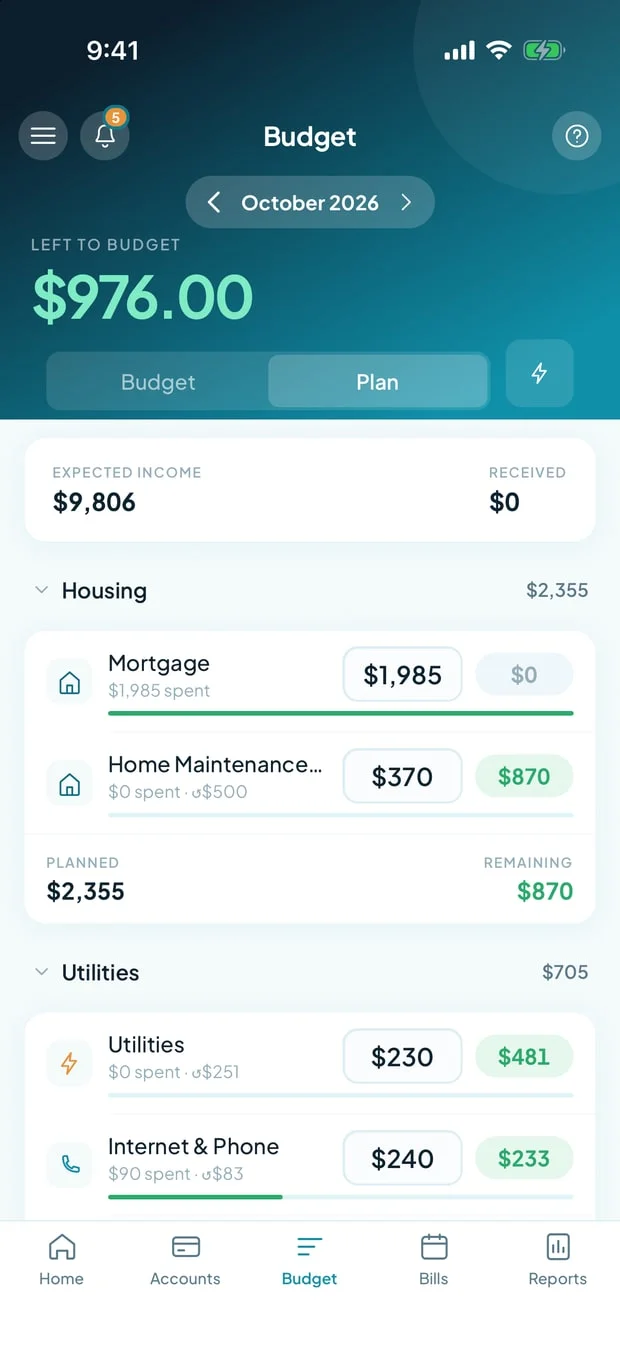
In Plan, each row has an amount box you edit in place; the change is saved when you leave the box, and a failure is reported on that row rather than swallowed. Auto-fill offers suggestions — such as what the category has recently averaged, what it is scheduled to owe plus what you have already spent (Sched + spent), or last month’s amount — that you can apply to one category or to a whole section, which is quicker on a phone than typing every figure.
A Budget every category control lets you apply one of those same figures to the whole month in one step: pick scheduled + spent, 3-month average, or last month’s budget, preview what each category would change to, and apply. An Undo is offered right after, in case you want the month back the way it was.
Seeing where an envelope stands
Section titled “Seeing where an envelope stands”Tap a budgeted category to open its sheet: its amount, what has been spent, what is left, what rolled over, and its recent average. Removing the envelope is offered from the same sheet.
What the app does not do
Section titled “What the app does not do”- No savings goals. Marking a category as a goal is done in the web app on a PC or Mac. Goals you have already marked still appear on the dashboard.
- No year-at-a-time planning. Year targets, and spreading one across the remaining months, are part of the PC or Mac layout.
Related pages
Section titled “Related pages”- Categories — where your categories came from, and why every transaction has one.
- Your first envelope — the short version, as part of the Quick start.
- The budget interview — the guided first pass at choosing envelopes.
- Bills — the recurring outgoings your budget has to survive.
- Safe to Spend — what your envelopes feed into.
- Dashboard — where your savings goals and budget summary are shown.
- Where each feature works — the platform map for every documented feature.