Scheduling a bill
Step 8 of the Quick start. A scheduled bill in Tovari is a forecast: it tells the app that $X is expected to leave account Y on date Z, so your projections and your Safe to Spend number can take it into account.
Does a schedule post payments on its own?
Section titled “Does a schedule post payments on its own?”No. A schedule never creates a transaction on its own; only Enter records one. When your bank’s copy of the payment syncs and clearly matches, Tovari settles the occurrence against that row. Otherwise the occurrence simply stays outstanding.
What do Enter and Skip do?
Section titled “What do Enter and Skip do?”Enter records an occurrence in your register; Skip passes over it without recording anything. Both move the bill’s cursor: the next occurrence Tovari still considers unpaid.
| Action | What it writes | What it does to the schedule |
|---|---|---|
| Enter | Creates a transaction dated the day you enter it, prefilled from the bill — payee, category, and signed amount — as an uncleared row | Advances the cursor past that occurrence |
| Skip | Nothing in the register — it only clears a Mark as scheduled note on that occurrence, if it had one | Advances the cursor past that occurrence |
So Skip is “this one didn’t happen, move on”, not “delete the bill”. The schedule itself is untouched and the next occurrence appears as normal.
One refinement on Enter: if your bank has already posted the payment — even up to a week after the due date — Tovari can recognise the existing row and settle the occurrence against it rather than creating a second copy — but only when that row’s description names the bill or its payee, the row is already assigned to the bill’s payee (or to a payee you confirmed for this bill), or its description names only a card network (“MASTERCARD” or similar).
A bank row whose description names nobody at all — a bare “TRANSFER FROM ACCT … VIA WEB”, say — is recognised too, but only at exactly the occurrence’s amount and only when it is the one such row nearby. While your bank still has that row as pending, the occurrence is flagged as having a payment in flight without asking you anything. Once the bank has posted it, Tovari settles your oldest unpaid occurrence against it (Undo bill match on the transaction reverses that). For a later occurrence, Enter shows you the row first and nothing is written until you confirm.
You usually do not need Enter at all. Once the bank has posted a payment Tovari recognises — by name, by payee, by a card-network description such as “MASTERCARD DES:PAYMENT”, or as the only nameless row at the exact amount — the next sync settles your oldest unpaid occurrence against it on its own, provided the amount is within the bill’s usual range. A payment at a noticeably different amount, a bank row you have edited, or one payment that fits two bills equally still waits for you to confirm it.
A bank row whose description names somebody else is still not recognised, and Enter then records a second row beside it. To link a row like that instead of recording a second one, set that bank transaction’s payee to the bill’s payee, then press Enter. That usually works, but it may not when the bill’s own payee is a generic name (“Payment”) or just a card network, or when another active bill on the same account uses that payee too. If you would rather not change the payee, use Skip: it moves the schedule past the occurrence without adding anything to your register.
A payment you marked as scheduled, that the bank posted late, is also recognised. If you used Mark as scheduled to say when you paid an occurrence and the bank’s copy turns up as much as two weeks after that date — ACH and cheque payments routinely do — Tovari matches that row to the marked occurrence instead of leaving it looking missed. It only does so at exactly the amount you declared, when the row’s description names the bill or its payee (or the row already carries that payee), when it is the only such row, and when it could not equally be the payment of another occurrence you still owe — except identical bills marked alike, whose identical payments pair one to one. A row still pending at your bank marks the occurrence as having a payment in flight without asking, and once the bank posts it the occurrence settles itself (Undo bill match reverses it).
What happens to an overdue bill?
Section titled “What happens to an overdue bill?”It stays put. Tovari measures “next due” from that cursor, not from today, so an occurrence you never entered does not quietly disappear when its date passes — it stays outstanding and shows as overdue on its real date. A bill whose first payment is in the past therefore surfaces immediately, overdue, exactly as it should.
The consequence is that a backlog is visible rather than silently discarded, and you clear it by entering or skipping each occurrence.
Create the schedule
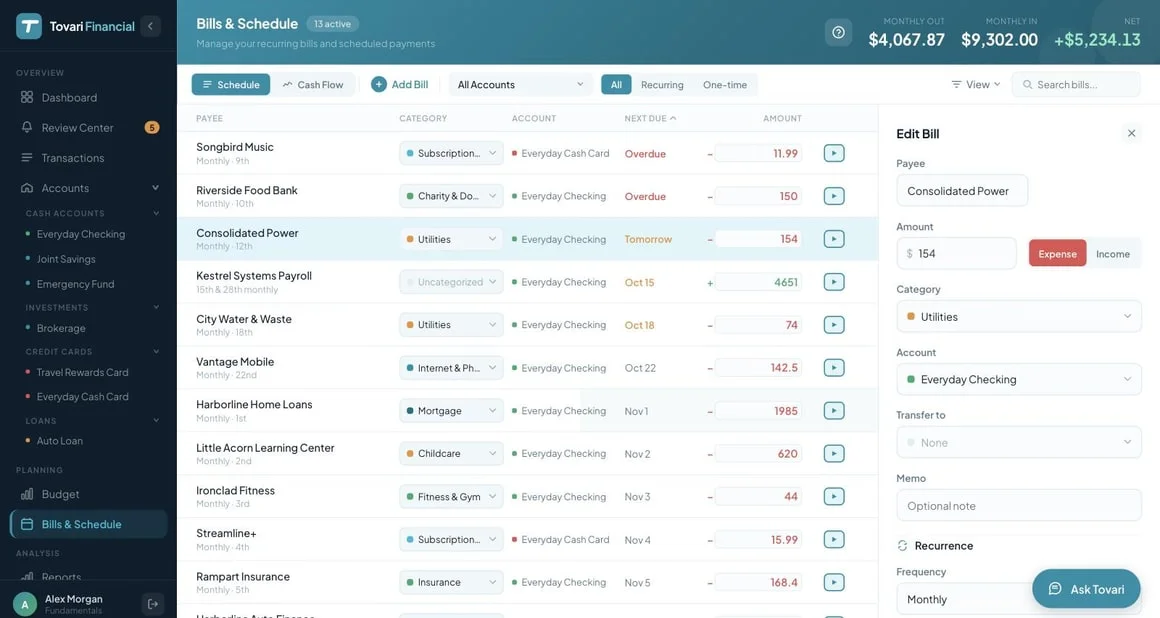
Section titled “Create the schedule”- Open Bills & Schedule in the left navigation.
- Press Add Bill in the toolbar. The editor panel opens.
- Fill it in:
- Amount, and whether it is an expense or income.
- Category and Account.
- Memo — optional; it is carried onto the transaction when you enter one.
- Frequency — one-time, weekly, biweekly, twice-monthly, monthly, quarterly, or annually, with the day-of-month or day-of-week controls the frequency needs.
- First Payment (or Date for a one-time item).
- The editor autosaves — there is no Save button.
If you set a first payment in the past, the editor asks whether you meant it: Yes, schedule it keeps the past date (and the occurrence surfaces overdue straight away), or Use today moves it forward. Once a schedule is running, Next Payment is editable, which is how you reset or nudge the cursor by hand.
Enter or skip an occurrence
Section titled “Enter or skip an occurrence”Scheduled occurrences for the next 30 days also appear in the account’s register, above the Today line. Each row ends with four buttons:
- The pencil — Edit schedule — opens the bill in Bills & Schedule.
- The calendar — Mark as scheduled — records that you have already paid this one out of band, on a date and for an amount you enter. Nothing is posted to the register and the schedule itself is left alone; the row simply shows the date and amount you gave it while the real payment clears. Press it again to unmark it.
- The cross — Skip — passes over that one payment. It stays listed, greyed out, with Restore to bring it back.
- Enter posts the transaction and advances.
Each row also shows a projected balance, so you can see what the account looks like after the occurrence lands.
Enter and Skip do exactly the same thing here as on the web — same two verbs, same cursor, same forecast-only rule. What is different is how you reach them: mobile puts them on the row itself rather than in a grid of icon buttons.
Create the schedule
Section titled “Create the schedule”- Open the Bills tab in the bottom tab bar.
- Tap Add a bill in the header. The New Bill sheet opens.
- Fill in the amount, Account, category, frequency, and First payment.
- Tap Save. (Tapping an existing bill opens the same sheet as Edit Bill.)
Pay or skip an occurrence
Section titled “Pay or skip an occurrence”Tap the bill’s row to open its This occurrence sheet. Its pinned buttons are Paid Today (Received Today for income) and, on accounts linked to your bank, Mark as Paid and Scheduled. On a linked account they record that you paid and post nothing — the bank’s copy settles it; on an unlinked account Paid Today records an uncleared row dated today. Skip is in the same sheet.
Swiping a row (iOS) or long-pressing it (Android) now offers only actions on the whole schedule: Pause/Resume, Edit and Delete. A long swipe fires the first action revealed, which is deliberately Pause — the reversible one — so a careless full swipe can never delete a schedule.
A paused bill has no outstanding occurrence, so its row opens the editor rather than an action the server would refuse.
Where you are now
Section titled “Where you are now”Tovari knows what you have, what you spent it on, what you are budgeting, and what is coming. That is everything the last page needs: understanding Safe to Spend.