Transactions
What is the register?
Section titled “What is the register?”The register is one account’s list of transactions. You reach it by opening an account, and everything you do with a transaction — adding, editing, categorizing, clearing, reconciling — happens there.
Transactions arrive in three ways: you type them in, a connected bank imports them, or you post one from a scheduled bill — afterwards, all the same kind of row.
The four statuses
Section titled “The four statuses”Every transaction is in exactly one of four states. Three of them are yours; one comes from your bank. The status control — the circle starting each row, under Status on a PC or Mac — shows which: an empty outline is uncleared, a tick is cleared and a padlock is reconciled (green and teal). On a phone browser you can also swipe a row left.
Uncleared
Section titled “Uncleared”The starting state for anything you enter yourself. It means: this has happened as far as you are concerned, but it has not settled at the bank yet.
Cleared
Section titled “Cleared”You have seen it on the bank’s side and marked it so. Moving a row between uncleared and cleared is a single click or tap on its status control, or a swipe on a phone browser.
Reconciled
Section titled “Reconciled”Set by reconciling the account, never by hand. A reconciled row is locked: its status control no longer moves it, so a statement you have already footed cannot be quietly un-footed later.
Pending — and why it is not the same as uncleared
Section titled “Pending — and why it is not the same as uncleared”Pending means the row came from your bank connection. Your bank has authorized the payment but has not posted it yet — this morning’s card swipe, say. Only a connected bank can put a row into this state; anything you enter yourself is uncleared, never pending.
Uncleared is your statement about a transaction; pending is your bank’s. Pending rows are shown apart from the settled list so they cannot quietly move a figure you were reading, and their amounts are the bank’s provisional ones — a tip or a fuel hold can change before the payment posts.
How does a pending row settle?
Section titled “How does a pending row settle?”When the bank posts the real transaction, Tovari updates the row that is already there — it never swaps in a replacement or adds a second row. So:
- Your edits survive. A category, payee or note you added while it was pending stays.
- A payment you already entered is matched, not doubled. If you typed it in yourself and your bank later reports it, the bank’s version attaches to your row and keeps what you wrote.
- Matching only happens inside one account, so a similar payment on another account is never swallowed by mistake.
If the bank never posts an authorized payment, the pending row does not linger — Tovari checks what it holds against what the bank still reports outstanding.
Some banks post an ACH payment as a new charge yet keep its hold pending. When exactly one such charge on the same account matches the hold (amount, merchant, within five days), Tovari removes the hold so the payment counts once. A hold you edited, matched, linked or settled a bill with stays.
How do I reconcile?
Section titled “How do I reconcile?”Enter the statement’s ending balance, mark rows cleared or uncleared until the difference reaches zero, and finish — Tovari then locks the matched rows as reconciled, agreeing the account with your statement.
Tovari re-checks the match before locking anything. If your screen is stale or a household member changed a transaction meanwhile, nothing is locked and you are asked to refresh and try again.
Pending rows do not stand in your way. An authorized-but-unposted payment is left out of the cleared total, so it can never be why a reconciliation will not balance.
On a linked account, the statement field starts with your bank’s last reported balance — or empty, with a note, when that balance includes activity not yet in Tovari.
For a credit card or loan, enter the amount you owe as a positive number; a credit balance takes a minus.
Reconciling again later locks only the rows you have cleared since.
Transfers between your own accounts
Section titled “Transfers between your own accounts”Money moved between two of your own accounts is not spending. Tovari records such a movement as a pair of linked rows — one on each account — and leaves the pair out of your spending and income figures because they are linked, not because of the category they carry. Marking a transaction with a category named “Transfer” does not, on its own, exclude it from anything.
Paying a loan that is one of your accounts in Tovari works the same way. On a PC or Mac, open the payment’s category picker and choose the loan under Transfer to a tracked account; in the mobile app, open the payment and use Link as transfer. Tovari adds the matching row to the loan account for the whole amount. There is no principal and interest split, and as a transfer none of the payment counts as spending.
Figures Tovari works out for you
Section titled “Figures Tovari works out for you”The register header shows the account’s Cleared, Uncleared, Working Balance and — with pending bank activity — Pending figures; each row carries a running balance, and each month heading Net (on desktop web also Ends, its closing balance). Tovari works them all out, so every place you look agrees; read them as meanings, not a sum to reproduce.
The layout
Section titled “The layout”The register is one list anchored at today: bills due in the next 30 days above the Today line, with Overdue ones just above it; below it a Pending group of the bank’s unposted rows, then posted transactions, newest first. Columns: Status, Date, Payee / Item, Notes, Category, Amount and Balance.
- Upcoming bills show one status — Choose payment or Pending, then Scheduled, then Edited, else the frequency — and the projected balance after them (— when skipped or already at your bank), with Edit schedule, Mark as scheduled, Skip and Enter. After Enter records a row, Undo is offered briefly — see Bills.
- Pending rows are in italics, their provisional amount marked ≈.
- A bill from another account that pays into this one shows read-only: Paid from it on a card or loan, From it elsewhere; Open goes there.
- Above the list, the Projected balance chart draws the balance from your View’s start to 30 days ahead — on a card or loan, what you owe. See reading your register.
The action row
Section titled “The action row”Add Transaction, Add Scheduled Item, File Import, Export, View and search; Reconcile is in the header. Export is a spreadsheet of the register as you are filtering it.
Adding a transaction
Section titled “Adding a transaction”Add Transaction opens a new row under the Today line, on this account. Fill in date, payee, note, category and one Amount (a leading minus means money out), then press Enter or Save; Esc writes nothing. For a transfer, type the amount, then pick an account under Transfer to account in the payee list.
Add Scheduled Item opens it dated tomorrow. A future date saves a one-time bill in Upcoming instead, and the row says so; Repeats turns it into a repeating bill.
Finding transactions
Section titled “Finding transactions”The header carries a search box and a View panel holding the date range, an uncleared-only switch, an uncategorized-only switch and a bank-text switch, which shows the bank’s own description under every row — pending rows included. Search and filters cover the whole account, not just the rows on screen.
To clear a search, click the ✕ in the box or press Esc.
An account you have never set a view on opens on the last three months, with every switch off. Reset in the View panel puts it back to exactly that.
Your View settings are remembered per account. Search is not, so it can’t hide rows.
Editing
Section titled “Editing”Click a cell once on an uncleared row or upcoming bill — double-click on a cleared or reconciled row — and edit it in place; Enter saves, Esc cancels, arrows and Tab move on. A posted date can’t move past today, a reconciled row keeps its date and amount, and an upcoming bill’s change applies to that payment only.
The ⋮ menu holds Edit, Make recurring, Undo bill match and Delete. Selecting several rows brings up a bar to categorize them, link them as a transfer, or merge a matching pair. Split rows show Split (N) and can’t be merged or bulk-categorized.
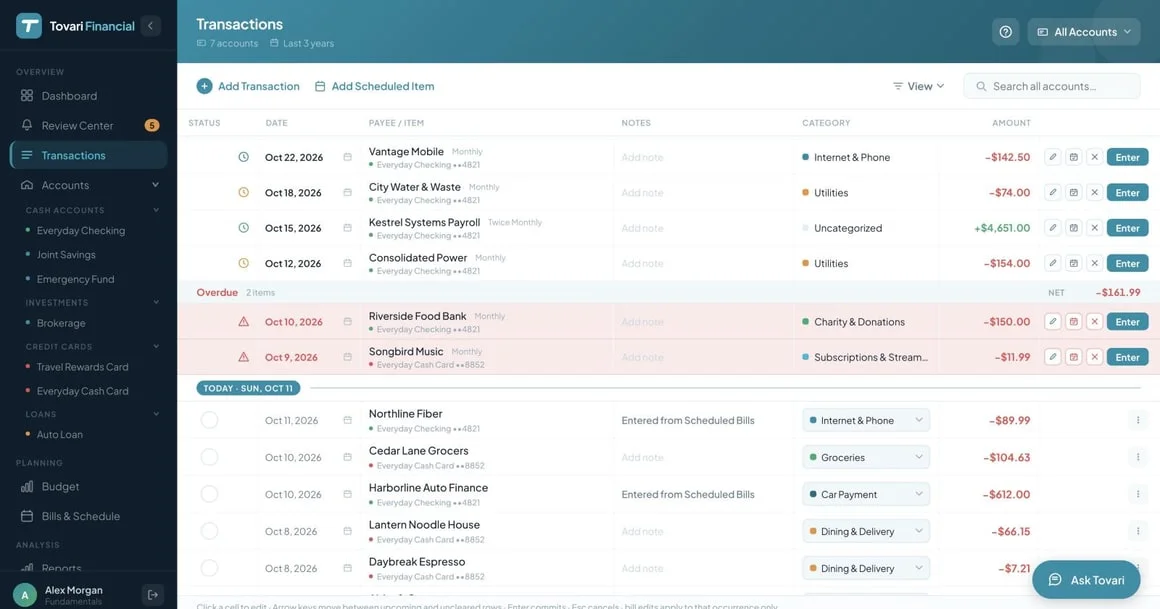
The Transactions screen
Section titled “The Transactions screen”Transactions in the sidebar lists every open account in one timeline: bills due in the next 90 days (and overdue ones) above Today, and 3 years of posted transactions below. It shows no balances and has no export.
The account filter at the top right narrows it; closed accounts aren’t listed, and your choice is remembered. Search covers both parts. A month’s Net leaves out transfers between selected accounts. A bill from a filtered-out account shows on the one it pays into. With more than 10 accounts that have bills, a note asks you to narrow the filter. Add Transaction asks which account; a saved row’s account can’t be changed here.
On a phone browser
Section titled “On a phone browser”Opening the web app on a phone gives you the mobile app’s register as a list: search, filters, Recurring detected, Pending at the bank and a tap-to-edit sheet. Tap a row’s circle, or swipe the row left, to clear or unclear it; a reconciled row’s padlock explains the lock and changes nothing.
Recurring detected offers Schedule (make it a bill) or × (dismiss, with Undo). Reconcile account, beside the bell, works as in the mobile app.
Home’s Search and See all transactions open every account’s transactions.
Not in this layout: file import and export. Use View desktop site in Settings, or a PC or Mac.
Getting there
Section titled “Getting there”Open the Accounts tab and tap an account; the register opens inside that tab, and the back gesture returns you to your accounts.
The layout
Section titled “The layout”The header band has two tabs, and the app remembers your choice on that phone:
- Working balance — the working figure with cleared and uncleared beneath it, any pending activity, and when you last reconciled.
- Projected — the balance from the start of your view to 30 days ahead, with a one-line summary (the lowest point, say); tap it for the full sentence. A card’s line climbs as you owe more, toward its limit.
An investment account valued from market prices shows its value history instead, with no tabs.
Below the band the list is anchored at Today: the next 30 days’ bills above it, spotted recurring payments just under it, Pending at the bank, then posted transactions by month and day, newest first. Groups show Net and what they end on (a posted month’s end is hidden while you search or show only uncleared or uncategorized rows); rows carry the running balance. A bill from another account that pays into this one reads Paid from it on a card or loan, From it elsewhere; tap to open it there.
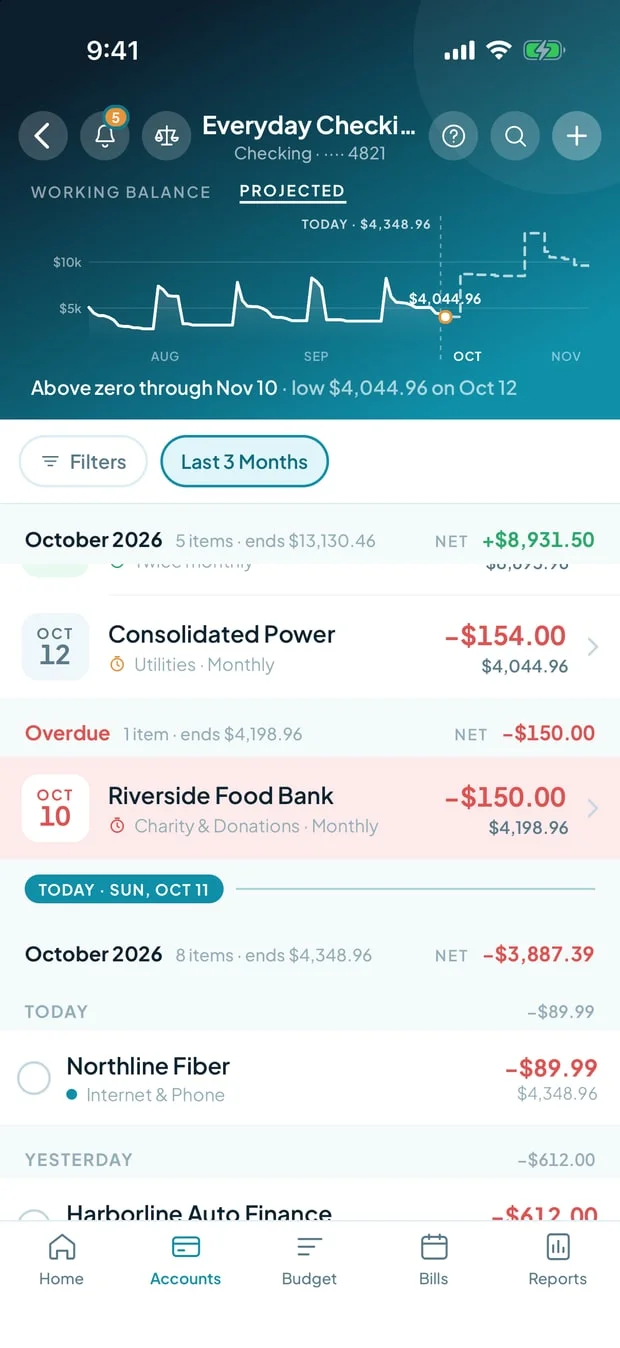
Filtering and the header controls
Section titled “Filtering and the header controls”The header holds back, the bell, Reconcile account, help, Search and Add a transaction. Beneath it, chips show what is applied; the Filters sheet holds the date range (including All), Only uncleared, Only uncategorized and Show bank text. A new account opens on the last three months, and Reset returns there. There is no sort: newest is always first.
Editing
Section titled “Editing”Tap a row’s circle to clear or unclear it; a reconciled row shows a padlock and does not move.
Add a transaction opens the New transaction sheet on this account, with one amount (a minus sign means money out) and a Transaction / Scheduled switch. A date after today saves a bill instead, with a Repeats choice. If your bank already reports a matching pending payment for a bill you enter, the app offers to settle the two — see Bills.
Tap a row to edit it, Link as transfer, Make recurring, Undo bill match or Delete; deleting one side of a transfer asks whether to delete both. Press and hold to select rows, then Categorize, or with exactly two, Match them as one or Transfer each to an account you pick; split rows are skipped. Labels flag a possible duplicate or transfer, an AI choice, an opening balance, an unconfirmed side, a settled bill and, in a household, who logged it. Offline, you can read but not change anything.
Reconciling
Section titled “Reconciling”Reconcile account runs the same reconciliation as the web.
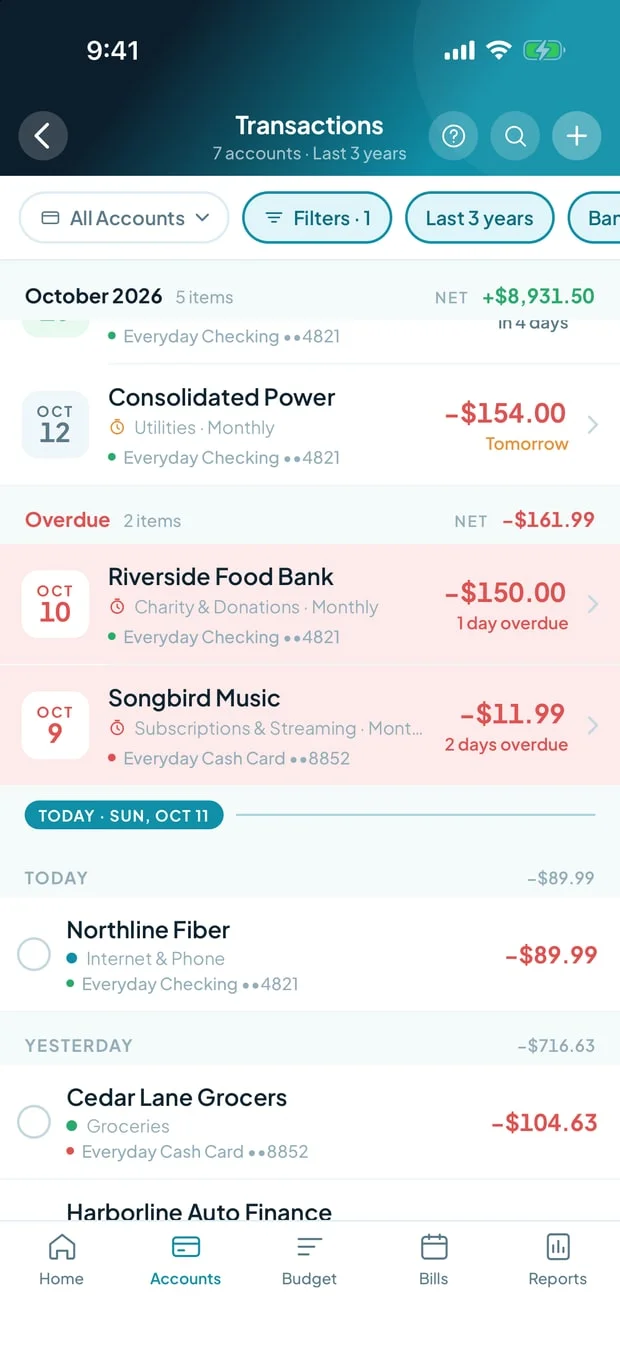
The Transactions screen
Section titled “The Transactions screen”Transactions on Accounts (or, unfiltered, Search / See all transactions on Home) lists every open account together: bills due in 90 days or overdue above Today, 3 years of posted rows below. Bills show their account’s balance; no export or reconcile. The account chip (open accounts) narrows it and, with Filters, is remembered. Each row names its account; a transfer’s two sides are joined, left out of Net. A filtered-out account’s bill shows on the one it pays into. Add asks for the account; a saved row keeps it. Hold a row to Categorize several; transfers are skipped.
Related pages
Section titled “Related pages”- Accounts — the balances an account shows and what closing one does.
- Bank connections — where pending rows come from.
- Payees — the Payee column and a payee’s default category.
- Categories — where your categories came from.
- Bills — scheduled payments, and turning a spotted recurring one into a bill.
- Safe to Spend — what your register feeds.
- Reading your register — the Quick start version.
- Glossary — what each status and button is called.
- Categorizing spending — categorizing each row.
- Where each feature works — the platform map.