Reading your register
Step 5 of the Quick start. The register is one account’s transaction list: each row with its payee, category, amount, running balance and a status saying how settled it is. Choose an account to open it.
The four statuses
Section titled “The four statuses”Every transaction is in exactly one of four states. Three of them you control; one comes from your bank.
The status control is the small circle at the start of each transaction row. On a PC or Mac it sits in the first column, headed Status; in the Tovari mobile app it is at the left of the row. Its look tells you the status:
- an empty outline — uncleared;
- a circle with a tick — cleared (green);
- a circle with a padlock — reconciled (teal).
Click or tap it to move a row between uncleared and cleared. The phone-browser layout shows the same circle, and you can also swipe a row left, as the Web tab below describes. A pending row looks different again: on a PC or Mac its circle is dashed, with an hourglass inside.
In the picture, the row at the top is a scheduled bill rather than a transaction: a clock takes the place of the circle, and its buttons are Edit schedule (pencil), Mark as scheduled (calendar), Skip (cross) and Enter, labelled with the word — see Bills. Every term here is also in the Glossary.
Uncleared
Section titled “Uncleared”The default for anything you enter yourself. It means: this has happened as far as you are concerned, but it has not settled at the bank yet. A transaction you post from a scheduled bill also starts here.
Cleared
Section titled “Cleared”You have seen it on the bank’s side and marked it so. Toggling a row between uncleared and cleared is a single click or tap on its status control — or, in the phone-browser layout, a swipe.
Reconciled
Section titled “Reconciled”Set by reconciling the account, not by hand. When you reconcile, you enter the balance from a statement, Tovari re-checks your cleared rows against it on the server, and — only if they agree — locks the matched rows as reconciled. A reconciled row is locked: its status control no longer toggles, so a footed statement cannot be silently un-footed later. Reconcile has its own guide; for now it is enough to know that reconciled is a stronger, deliberate form of cleared.
Pending
Section titled “Pending”Pending is bank provenance. It appears only on rows that came from a connected bank and have been authorized but not yet posted — a card swipe this morning, say. You can never put a row into pending yourself; anything you type in is uncleared.
Two consequences worth knowing:
- When the bank posts the real transaction, Tovari transitions the same row in place rather than deleting it and inserting a new one, so any category, payee, or note you added while it was pending survives.
- If you had already entered that payment by hand on the same account, sync matches your row instead of adding a second one.
Pending rows are shown apart from the settled list so they never quietly move a number you were reading.
What do the balances above the list mean?
Section titled “What do the balances above the list mean?”They summarise the account, all calculated on the server:
- Cleared — the settled part of the account.
- Uncleared — what you have recorded that has not settled.
- Pending — shown when the account has pending bank activity.
- Working Balance — the headline figure for the account.
These are meanings, not a sum you should reproduce yourself: read the numbers the app gives you rather than adding them up. Each row also carries a running Balance column, computed server-side in the register’s own order.
The layout
Section titled “The layout”The register is one list anchored at today. Upcoming bills for the next 30 days sit above the Today line, with any Overdue bills just above it; below it come the Pending bank rows, then posted transactions month by month, newest first. The columns are Status, Date, Payee / Item, Notes, Category, Amount and Balance.
- Upcoming bills each have Edit schedule, Mark as scheduled, Skip and Enter buttons at the right, and their Balance is the projected balance after that payment. See scheduling a bill.
- Pending rows are in italics. Their ≈ amount is reference only until the bank posts a final figure.
- Month headings show Net for the month and Ends, the balance after its last row. While you search or filter, a posted month’s Ends is hidden, since only some rows show.
The Projected balance chart
Section titled “The Projected balance chart”Between the action row and the list, the Projected balance chart draws the balance from the start of your View period to 30 days after today. Its heading names both — Last 3 Months · projected through Nov 5, say — so changing the View changes the chart.
- The solid line is what the balance was, up to TODAY; the dashed line is what your upcoming bills will do to it, the same figure as the Balance column at every upcoming date.
- Point at the chart to read the balance on a day; move away and it returns to today.
- The arrow at the right collapses the chart to two figures: today’s balance and its lowest (or most owed) point. It is open again whenever you return to the account.
On a checking or savings account the line under the chart reads You stay above zero through Nov 5 · Lowest point is $543.39 on Oct 20, with the lowest point marked. If a bill would take you below zero it turns red — You go negative on Tue, Oct 20 — and the chart shades everything under $0.
On a credit card or loan the chart plots what you owe below zero, as the header does, and owing is not a warning:
- The marked point is the most owed in the next 30 days.
- A card with a credit limit shows a dashed Limit line and reads Most you’ll owe through Nov 5 is $1,240.18 on Oct 20 · 25% of your $5,000 limit — or, in red, the day a bill would take you over the limit. A card without a limit shows only the most you’ll owe.
- A loan reads what you’ll owe 30 days out and whether that is up or down from today.
- If the balance reaches zero it reads Paid off on Oct 20, plus any credit left after.
An investment account valued from market prices shows its value history instead, with no chart.
Changing a status
Section titled “Changing a status”The circle in the Status column is the control. Click it to move a row between uncleared and cleared. On a reconciled row the control shows a lock and does nothing — it reads Reconciled (locked). On a pending row it is a dashed circle with an hourglass: clicking it marks the row cleared before your bank posts it.
Editing a value
Section titled “Editing a value”Click a cell on an uncleared row or an upcoming bill to change it in place — double-click on a cleared or reconciled row. Enter saves and Esc cancels. A posted date can’t move past today.
Adding a transaction by hand
Section titled “Adding a transaction by hand”Press Add Transaction in the action row. A new row opens under the Today line, on this account, with fields for date, payee, note, category and one amount — a leading minus sign means money out. The next page, categorizing spending, covers the payee and the category. Nothing is saved until you press Enter or Save.
Add Scheduled Item opens the same row dated tomorrow. Any future date is saved as a bill in Upcoming rather than a transaction that moves your balance now, and the row tells you so.
The action row also carries File Import and Export; Reconcile is in the header.
On a phone browser
Section titled “On a phone browser”Opened on a phone, the web app shows the register as a full-screen list with no Status column, but each row still starts with its circle: tap it to clear or unclear the row. You can also swipe a row to the left: a short swipe reveals a Clear button (or Unclear, on a row that is already cleared) to tap, and a long swipe applies it straight away. A reconciled row is locked and shows a padlock: tapping the padlock explains the lock, and swiping it reveals Reconciled (locked); neither changes anything. An uncleared row reads · uncleared after its category. Tapping a row opens it for editing.
Getting there
Section titled “Getting there”The register is not its own tab. Open the Accounts tab and tap an account row; the register is pushed inside that tab, so the tab bar stays put and the back gesture returns you to the list.
The layout
Section titled “The layout”The teal header band has two tabs — WORKING BALANCE and PROJECTED. Tap one, or swipe the band; the app remembers your choice on that phone and opens on Working balance the first time.
- Working balance shows the working figure with CLEARED and UNCLEARED beneath it, a line such as 2 pending · ≈−$136.29 (or Nothing pending), and Reconciled with the date you last reconciled.
- Projected draws the balance from the start of your filter’s date range to 30 days ahead: the solid line is what happened, the dashed line what your bills will do, with today and the lowest point marked and dollar amounts down the left side. The line under the chart sums it up — Above zero through Nov 5 · low $1,843.42 on Oct 15, say, or You go negative on Oct 20 in red — and tapping it opens the full sentence. On a credit card the line climbs as you owe more, with your limit drawn across the top: you see the most owed and how much of the limit that uses. A loan’s line climbs toward $0 as you pay it down, and shows what you will owe and when it is paid off.
An investment account valued from market prices shows its value history instead, with no tabs.
Below the band the list is anchored at the Today line:
- Upcoming bills for the next 30 days sit above it, each with the projected balance after it — or a dash where it no longer moves the balance (skipped, or already pending at the bank). Their colour matches Bills: red overdue, blue matched to a pending bank payment, teal when you must choose the payment, green marked as scheduled, and orange with Tap to confirm when Tovari found the payment and waits for you. The Transactions screen colours its bills the same way, each with the balance its own account will have after it.
- Recurring detected sits just under Today: payments Tovari has spotted that have no bill yet.
- Pending at the bank — the pending rows, in their own band, exactly the same “authorized but not posted” meaning as the web’s Pending section. Its caption shows what the account ends on.
- The posted transactions, month by month and day by day, newest first. Each month shows its Net and ends — the balance after its last row — and each day its own net. While you search, or show only uncleared or uncategorized rows, a posted month’s ends is hidden.
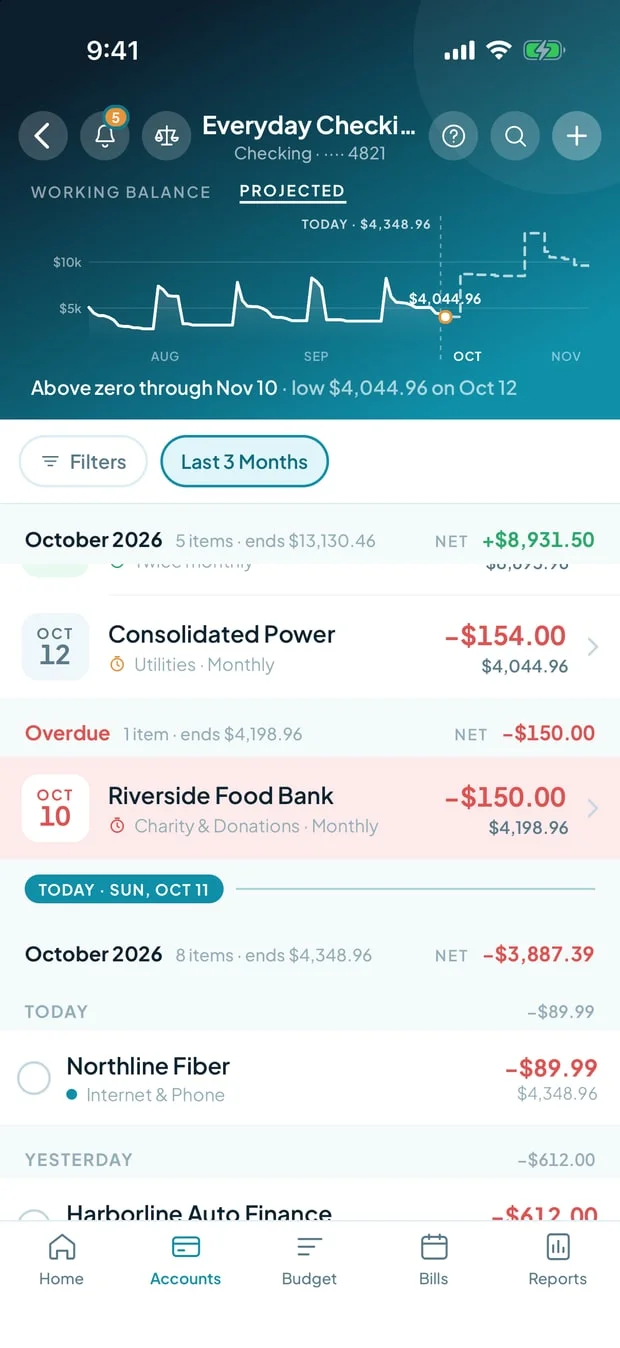
Each row shows payee, category and amount, with the running balance under the amount. An uncategorized row shows its category in amber. Small labels flag what needs a look: DUPLICATE?, TRANSFER?, AI (Tovari chose the payee or category), OPENING, UNCONFIRMED, BILL, and — in a shared household — BY whoever logged it.
A bill you scheduled on another account that moves money into this one appears here too: as Paid from that account on a credit card or loan, and as From that account on checking, savings or any other account. It is read-only here; tap it and choose Open in to go to the account it’s scheduled on.
There is no sort control: the newest transactions are always first.
Changing a status
Section titled “Changing a status”Tap the circle at the left of a row. Its accessibility label states what the tap will do — Cleared, tap to mark uncleared or Uncleared, tap to mark cleared. A reconciled row reads Reconciled — locked and shows a padlock instead of a tick; tapping it changes nothing and tells you the transaction was locked when you reconciled the account. Cleared rows are green and reconciled rows teal, as on the web.
Adding a transaction by hand
Section titled “Adding a transaction by hand”Tap Add a transaction in the register header. The New transaction sheet slides up with Date, payee, category, amount and note fields, already set to this account; Save commits it. A Transaction / Scheduled switch sits at the top — leave it on Transaction for money that moves once, or choose Scheduled to set up something that repeats. Pick a date after today and the sheet saves a bill in Upcoming instead, with a Repeats row (Never for a one-time bill) and a note saying so. Tapping an existing row opens the same sheet as Edit transaction, without that switch.
If you enter a scheduled bill’s occurrence and the bank has already flagged a matching payment as pending, the app offers to settle the two together rather than leaving a duplicate — the confirmation reads Settle this bill against your bank? with Enter and settle. Tovari only recognises the pending row as this bill’s payment when its description names the bill or its payee, the row is already assigned to the bill’s payee (or to a payee you confirmed for this bill), or its description names only a card network.
A row whose description names nobody at all — “TRANSFER FROM ACCT #6223 ON 09/18 VIA WEB”, say — is recognised too, but only when it is for exactly the amount of the occurrence, is the only such row nearby, and could not be the payment of any other bill or occurrence on the account. While the bank still has it as pending, Tovari flags the occurrence as having a payment in flight rather than asking — that is what the pending marking on a scheduled row means. Nothing is settled while it is pending. Once the bank has posted its copy, Tovari settles the bill’s oldest unpaid occurrence against it on its own; for a later occurrence, Enter asks about the row first. A row whose description names somebody else is still never recognised, and Enter records a second row instead.
Working with several rows
Section titled “Working with several rows”Press and hold a posted transaction to start selecting; tap others to add them. A bar offers Categorize, and with exactly two selected Transfer (each linked to an account you pick) and Match (merge two copies of one payment). Clear, the ✕ or Android’s back button ends it.
Deleting a transfer
Section titled “Deleting a transfer”Deleting one side of a transfer asks Delete both sides?, naming both amounts and accounts — the two sides are one movement, so they go together.
Entering an amount
Section titled “Entering an amount”Tapping the amount opens your phone’s keyboard, with a Done button above it to put it away. Start the figure with a minus sign for money going out; the hint under the field reminds you.
Reconciling is different: the Statement ending balance field carries a +/− button to flip the sign, since a credit card or loan statement balance is normally negative.
Where you are now
Section titled “Where you are now”You can read any account and tell a settled row from one that is still in flight. Next: making sure each row says what it was for — categorizing spending. For any word you are unsure of, see the Glossary.