Bills
What is a scheduled bill?
Section titled “What is a scheduled bill?”A scheduled bill forecasts a payment: an amount leaving (or arriving in) an account on a date, monthly, weekly, twice a month, quarterly, yearly and more, or just once.
A schedule is a forecast, never an entry
Section titled “A schedule is a forecast, never an entry”Tovari never posts a bill for you, however long it is due: your projections and Safe to Spend count it ahead of time. Settling against the bank’s own row (below) adds none.
Every payment counts against a projected balance exactly once, by one calculation behind Home, the register, Bills Cash Flow and the Cash Flow report, so they agree on the lowest point and first negative day. Overdue and due-today payments not in your register count tomorrow. One already in your register or at your bank counts no second time, even a found-but-unsettled payment or a row you typed at the exact amount. Skipped counts zero.
Next due is measured from the schedule, not from today
Section titled “Next due is measured from the schedule, not from today”Each bill carries a next payment date: the first occurrence still outstanding.
- A bill whose first payment is in the past shows up overdue straight away, dated on the day it was actually due, rather than quietly starting from today.
- An occurrence you never dealt with does not expire. It stays outstanding, and shows as overdue on its real date, until you enter it or skip it. Past 100 overdue occurrences, the oldest fold into one banner with their count and total.
The next payment date is editable.
Enter and Skip
Section titled “Enter and Skip”Two actions move the schedule past an occurrence; only one writes to your register.
| Action | What it writes | What it does to the schedule |
|---|---|---|
| Enter | Records the payment in the register, prefilled from the bill — payee, category, account and amount | Moves the schedule past that occurrence |
| Skip | Nothing in the register — it only clears a Mark as scheduled note on that occurrence, if it had one | Moves the schedule past that occurrence |
Earlier payments first. Enter and Skip refuse a later occurrence while an earlier one is outstanding; Enter reads disabled on it.
Skip does not cancel the bill. A third action, Mark as scheduled, records that you paid an occurrence elsewhere, with the date and amount: nothing is posted, and it reads Scheduled while the payment reaches your bank.
Entered one by mistake? After an Enter that recorded a new row, the message’s Undo removes it and restores the occurrence with its mark, note and changed date or amount, from every screen, including Home’s Coming up card. Deleting the transaction Enter created also restores the occurrence. If Enter attached to a bank transaction, choose Undo bill match on it instead. Neither works once a later one is entered or skipped.
Enter attaches to the bank’s copy when it can recognise it: a bank row whose description names the bill or its payee, that is assigned to the bill’s payee (or one you confirmed for it), or that names only a card network (“MASTERCARD”). If it is still pending at your bank, Tovari asks you to confirm. Otherwise, Enter records a new, uncleared row.
A row you typed yourself is never attached silently. If one is at the bill’s exact amount, Enter asks: match links the bill to it unchanged, or post anyway adds a new row.
A payment between two of your linked accounts counts too, and stays out of spending.
A bank row Tovari cannot recognise is not attached, even at exactly the bill’s amount. Enter records a new row beside it. To link it instead, set that transaction’s payee to the bill’s payee and press Enter — not enough if that payee is generic (“Payment”), a card network, or shared with another active bill — or Skip the occurrence.
Each bank row goes to the occurrence it fits best, weighed against every outstanding one at once. A date and amount you gave replace the schedule’s for matching.
When more than one bank row could be this payment, Tovari asks you which: the occurrence reads Choose payment and lists each candidate; None of these posts it as its own row. A pick in the register or on the bill clears both. Identical payments pair one to one.
A posted payment settles the bill on its own at the next sync, or at once when you add or edit the bill, mark or change a payment, Enter or undo, oldest occurrence first. It needs an amount within the bill’s usual range, a date at most two days early (five at the exact amount), and a description naming the bill, only a card network (“MASTERCARD DES:PAYMENT”) or nobody (“TRANSFER FROM ACCT #6223”; these two at the exact amount, as the only such row nearby) — or a payment you marked as scheduled, posting up to two weeks later at the amount you declared. Naming somebody else never qualifies. Each sends a Bill auto-entered notice and reads Auto-entered with Undo (also on the notice), which reverses it for good and offers Ask me first for this bill. Once a payment settles a bill, its description alone recognises the next. A pending copy never settles; it marks the payment as in flight.
Otherwise it reads Payment found (a different amount, a row you edited, a later occurrence, a pending row whose payee two bills share, or one payment two bills fit equally, which both show until you pick one); Enter shows that row first. The Schedule, Upcoming Bills and Budget show these labels too, never overdue.
Changing one payment
Section titled “Changing one payment”Editing a payment’s amount, date or note in Cash Flow or the register changes only that payment, which then reads Edited; skipped there, it reads Skipped, not overdue, and stays listed with Restore. Cash Flow shades pending rows blue and scheduled ones green; the app colours every list so, and a found payment orange with Tap to confirm. A moved payment also matches at its new date and amount.
Pausing, finishing and deleting
Section titled “Pausing, finishing and deleting”A paused bill keeps its history and settings but has nothing outstanding, so it offers no Enter or Skip. A schedule that has run to its end — a one-time item you entered, or a recurring one that reached its final payment — is completed, and hidden until you ask to see completed items. Deleting a bill removes the schedule but keeps your transactions.
Suggested recurring payments
Section titled “Suggested recurring payments”When a bank connection shows a payment recurring with no schedule to match, Tovari offers it as a suggestion. Nothing is scheduled until you save it; you can dismiss (and restore) one.
A suggestion arrives prefilled — the payee, the rhythm it appears to follow, a category, a first date, and the typical amount: an estimate from past payments, not a promise, with a choice of figures to start from. Every field is editable before you save, and each suggestion shows the payments behind it.
The Bills & Schedule screen
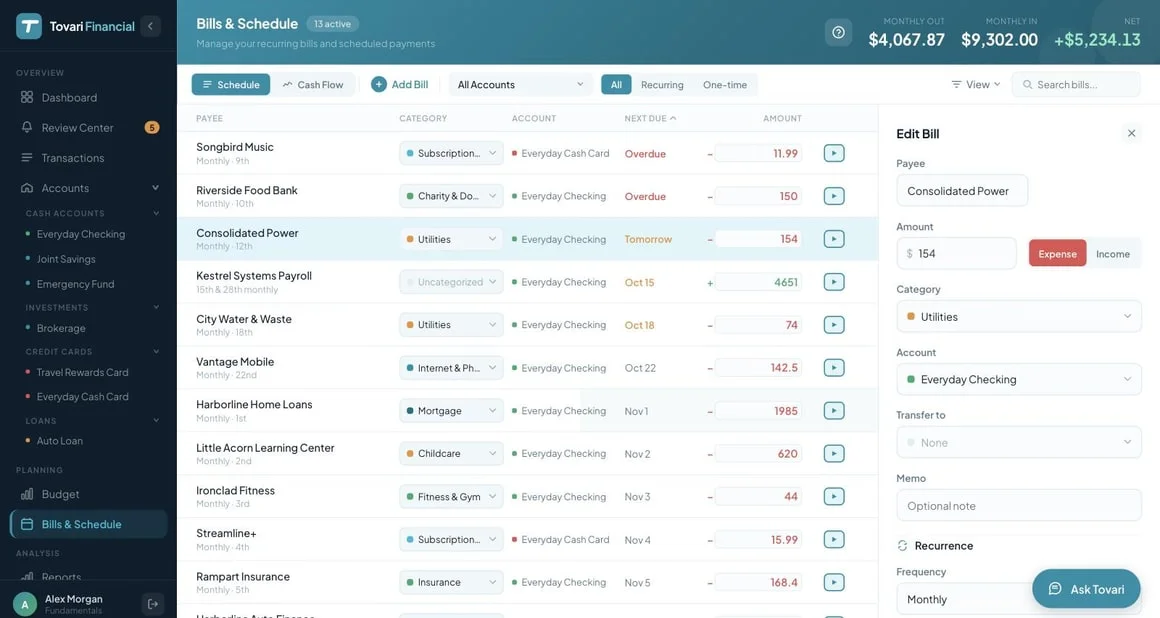
Section titled “The Bills & Schedule screen”Bills & Schedule is in the left-hand navigation. Its header shows how many bills are active and what they add up to each month — out, in and net — for the accounts you have filtered to.
The toolbar leads with a Schedule / Cash Flow switch (below), then:
- Add Bill, which opens the editor panel.
- An account filter, defaulting to all accounts.
- Type filters — All, Recurring, One-time.
- View Options, which is where Show Completed Items lives.
- Search bills.
Cash Flow mode
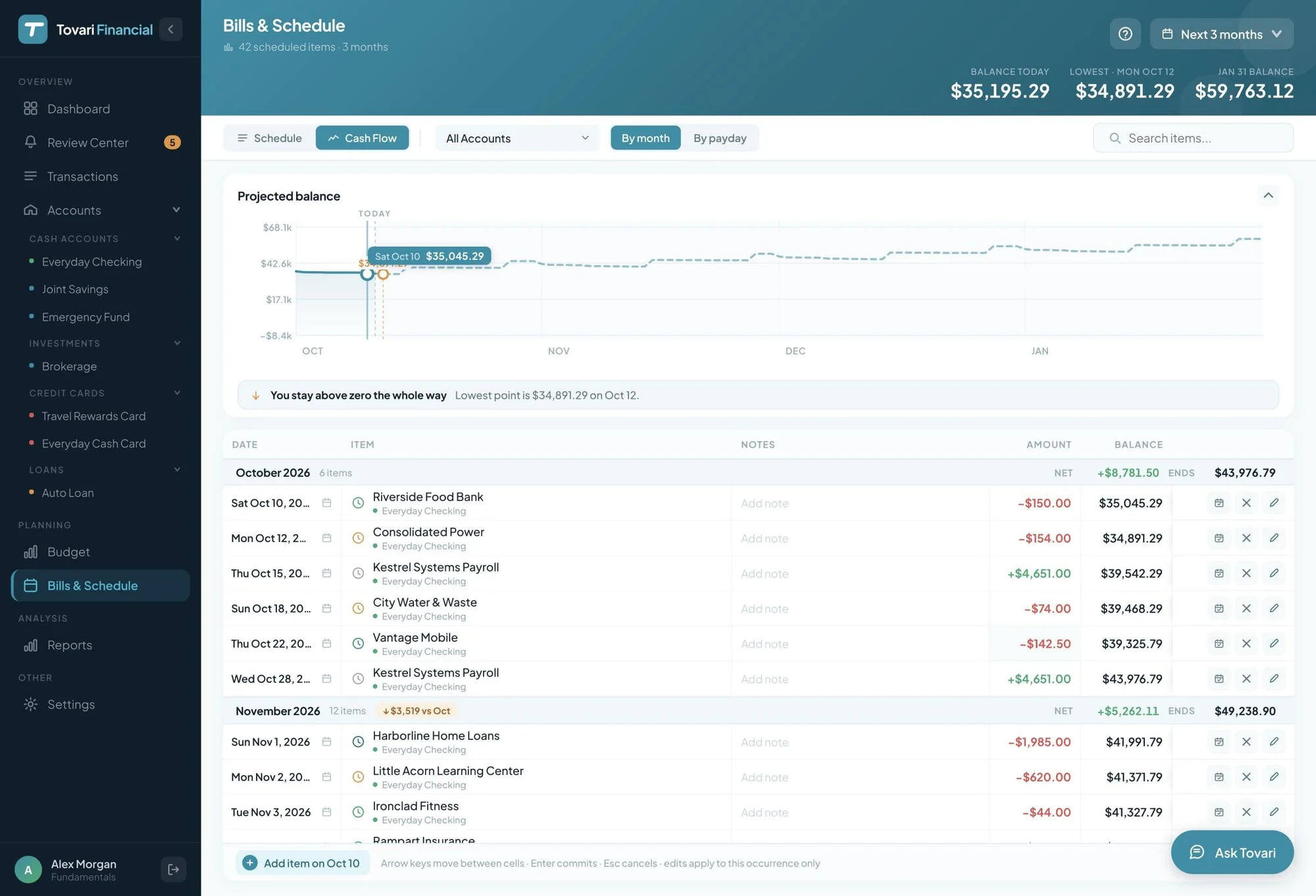
Section titled “Cash Flow mode”The Schedule / Cash Flow switch: Schedule shows one row per bill; Cash Flow lists every payment ahead by date with your projected balance after it, under a chart of that balance marking today and the low point. The period button looks 3, 6 or 12 months ahead, moving list and chart together. Group it By month or By payday (one per deposit); each shows what it nets and the balance it closes on. The account filter covers your everyday cash accounts; search only hides rows — the chart and list cover every payment and agree on each day’s balance. Column widths reset when you reopen Tovari.
Editing a payment
Section titled “Editing a payment”Cash Flow edits like a spreadsheet: click or arrow to a cell to change a payment’s amount, date or note; Enter commits, Esc cancels, the calendar button picks a date. Skip stops a payment counting until you restore it, Revert undoes your changes to it, Mark as scheduled (calendar-check) opens the register’s dialog, prefilled from the row, for a payment already scheduled with your bank; the pencil edits the bill, and Add item adds a one-time bill on the date you are on (its action is Delete).
In the calendar, hovering or tabbing to a day previews moving the payment there: Lowest point and First negative day, before → after (“None” if it never goes negative). Nothing changes until you click. One-time items and paid payments have no preview.
Creating and editing a schedule
Section titled “Creating and editing a schedule”The editor panel takes the amount and whether it is money out or in, the account, a category, an optional memo carried onto the transaction when you enter one, the frequency with whatever day-of-month or day-of-week control it needs, and the first payment date. It autosaves (no Save button), keeping edits made as you leave. Auto-enter: Automatic, or Ask me first to confirm each payment found (the bill then shows it).
A day field (On Day, First Day, Second Day) is checked when you leave it: over 31 becomes 31, 0 becomes 1, blank reverts. A new bill is created once it has a first payment date, which stays editable until the schedule starts, then locks.
A first payment in the past is confirmed before it is kept. Once a schedule is running, its next payment date is editable directly; a date off the schedule asks you to confirm, naming the payments it skips.
Every bill has an optional Transfer to account. Leave it None, or name an account inside your Safe to Spend pool, and the payment is not an outflow; name one outside it — a loan, a credit card or an investment account — and it counts like any other bill.
You can change a schedule’s frequency at any time, on every layout — including switching between one-time and recurring. Turning a one-time item recurring keeps its date as the first occurrence. Turning a recurring schedule one-time asks you to confirm: the next outstanding occurrence survives, but any end condition and any occurrences marked as scheduled are cleared for good. A register’s Add Scheduled Item can start one too: a future date offers Repeats.
Entering and skipping
Section titled “Entering and skipping”Occurrences due in 30 days, and overdue ones, sit above the register’s Today line with their projected balance and Edit schedule (pencil — opens Bills & Schedule), Mark as scheduled (calendar), Skip (cross) and Enter. A bill from another account shows on the one it pays into (Paid from it on a card or loan, else From it); change it there.
Suggested recurring
Section titled “Suggested recurring”The Bills screen and the register each carry a collapsed Suggested Recurring section with a count; a transaction belonging to a detected recurring payment is marked so you can open the proposal from it.
On a phone browser
Section titled “On a phone browser”The Bills tab matches the mobile app’s Schedule and Cash Flow modes: the same band, groups, filters, search, swipe actions and suggestions (Schedule opens a pre-filled bill, created only when you tap Save). A bill, or an upcoming bill in a register, opens the app’s This occurrence sheet. Nothing you filter or search is remembered.
The bill editor sets each bill’s Auto-enter.
The Bills screen
Section titled “The Bills screen”Bills is a tab in the bottom bar: your schedules as a timeline, ordered by when each is next due, under a band with your net monthly figure, Monthly out and Monthly in, and a Schedule | Cash Flow switch. A row of All, Recurring and One-time stays beneath it.
Search is in the header; closing it clears the search, which is never remembered. Accounts, sort, and showing paused or completed schedules live in the Filter & Sort sheet behind the header’s funnel. Nothing applies until Done or Show N bills; Reset restores defaults. A dot on the funnel means a filter (not a search) is narrowing the list.
Cash Flow mode
Section titled “Cash Flow mode”Cash Flow in the band’s switch lists upcoming payments by date with the balance after each; the app remembers your choice. The funnel then opens View options: Accounts in this projection (everyday cash accounts, up to 10) and Look ahead (3, 6 or 12 months), which reset when you reopen the app. The band shows your lowest balance and its day, with Today and the closing balance. Group By month or By payday; search hides rows but never changes the totals.
A pinned Projected balance chart marks today and the lowest point; its cursor tracks the list’s top row, dragging it scrubs the list, and it matches the list’s balance day by day. Below zero, You go negative on names the day and Show jumps to that payment. Tap its title to collapse it (remembered).
Adding a one-time item
Section titled “Adding a one-time item”In Cash Flow mode the header + adds a one-time Expense or Income: a payee (a new name creates one), amount and date, starting on the chart’s highlighted payment. It lands on a checking account in this projection. The + is off while offline or the projection is out of date.
Editing a payment
Section titled “Editing a payment”Tap a payment (here or in the register) to change its amount, date or note, Skip this one, Revert your changes, or Edit series.
Creating and editing a schedule
Section titled “Creating and editing a schedule”In Schedule mode, tap the + in the header for the New Bill sheet: amount, account, category, frequency, first payment and Auto-enter, then Save. Tapping an existing bill opens the same sheet to edit it.
Entering and skipping
Section titled “Entering and skipping”Tap a bill in Schedule, Cash Flow or a register’s upcoming rows for its This occurrence sheet (a paused or ended bill opens its editor). Above the keypad:
- Paid Today (Received Today for income): on a bank-linked account it posts nothing and the bank’s copy settles it; otherwise it adds an uncleared register row.
- Mark as Paid and Scheduled (linked accounts only) records the sheet’s date and amount.
Both act on the next occurrence due. A marked one shows waiting for your bank; a matching bank payment settles it once posted (or is offered to confirm), never a second row. Skip advances the schedule (with Undo); on a later occurrence it skips just that one (Unskip clears it).
Swipe (Android: long-press) for schedule actions: Pause or Resume, Edit, Delete in Schedule (a long swipe fires the reversible first one); Edit series in Cash Flow.
A payment that added a row offers Undo for a few seconds.
Suggested recurring
Section titled “Suggested recurring”A Suggested recurring strip, collapsed (count visible), opens to one card per proposal — payee, rhythm, typical amount, the payments behind it — to schedule or dismiss. With no bills, the empty screen leads with them.
Related pages
Section titled “Related pages”- Scheduling a bill — the Quick start version.
- Transactions — the register whose upcoming bills sit above Today, and what an entered bill looks like once it is there.
- Safe to Spend — how outstanding bills shape the headline figure.
- Budget — the monthly envelopes your bills are paid out of.
- Bank connections — where the activity behind a suggestion comes from.
- Where each feature works — the platform map for every documented feature.